

Getting locked out of your iPhone happens at the worst possible moment. It’s usually when you’re in a hurry, tired, or absolutely sure you remember the passcode—until you don’t. When that happens, there’s no trick to bypass the lock screen, as Apple doesn’t allow it. But there is a way to reset the phone and get access again, and that’s where Recovery Mode comes in.
Recovery Mode is basically Apple’s fallback option. It lets you wipe out the device and start over when nothing else works. It’s not ideal, but it’s reliable—and if you’ve backed up your data, it doesn’t have to be a disaster.
What You’ll Need Before You Begin
Before you jump into Recovery Mode, it helps to pause for a minute and make sure you’ve got what you need.
- You’ll need access to a Mac or a Windows PC, along with a USB cable to connect your iPhone. On a Mac, Finder handles the process. On Windows, you’ll need the Apple Devices app installed.
- It’s also worth thinking about backups. Recovery Mode wipes everything off the phone—there’s no way around that. If you’ve been backing up to iCloud or to a computer, you’ll be able to restore your data later. If not, the phone will still work again, but you’ll be starting fresh.
- If you don’t have access to a computer at all, your best bet is visiting an Apple Store or an authorised service provider. They can guide you through the same process.
How to Enter Recovery Mode on iPhone
First, you’ll need to turn the iPhone off. Now, press and hold the Side button and Volume Down button together. When the power slider appears, slide it and wait for the phone to shut down completely.
Once the screen is off, do the following:
- Plug the USB cable into your computer first.
- Connect the other end to your iPhone.
- Right away, press and hold the Side button.
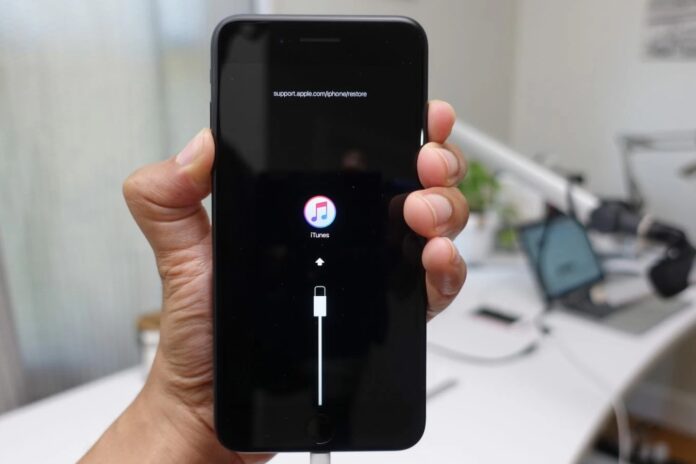
- Keep holding it until you see the Recovery Mode screen, showing a cable pointing toward a computer.
- If the buttons don’t respond at all, the device may need professional repair.
Don’t let go too early—Recovery Mode only appears if you keep holding the button.
Restore iPhone Using a Windows PC
If you’re on Windows, the restore process runs through the Apple Devices app.
Open the app and select your iPhone when it appears. If you’re asked to trust the device, approve it. From there, head to the General section and choose Restore.
At this point, Windows may need to download the software required to reset the phone. That can take a while—sometimes 15 minutes or more—so keep the iPhone connected and don’t interrupt the process.
Restore iPhone Using a Mac
On a Mac, everything happens through Finder.
Open Finder and look for your iPhone under Locations in the sidebar. Click it, approve any trust prompts that show up, and then select Restore.
If macOS needs to download system software, be patient. If the download takes too long and your iPhone exits Recovery Mode, don’t panic—just reconnect it and repeat the steps.
Finish Setting Up Your iPhone
Once the restore is complete, the phone restarts on its own and shows the familiar Hello screen. That’s your cue that the hard part is over. You can unplug the cable and move on.
From there, setup feels like day one again. You’ll sign in with your Apple ID, choose your preferences, and set up Face ID or Touch ID. If you have a backup, you’ll be asked whether you want to bring your data back from iCloud or from your computer.
If you don’t have a backup, you can still continue and use the phone normally. You can reinstall apps and add things back over time. Either way, once setup is complete, you’ll be back in control of your iPhone.
See More: How to reset iPhone, iPad or iPod touch to factory settings
Final Tips to Avoid Getting Locked Out Again
Most people only want to go through this once. A few habits can make sure you don’t have to repeat it.
Regular backups matter more than most people realise—especially when things go wrong. It also helps to use a passcode that’s secure but realistic, not something you’ll forget the moment you change it. And if you rely on lots of passwords across devices, keeping them saved in a trusted place or a password manager can save you future headaches.
Recovery Mode isn’t something you plan for, but it’s good to know it’s there when you need it. With a bit of preparation, it doesn’t have to be nearly as stressful next time—if there ever is a next time.
