

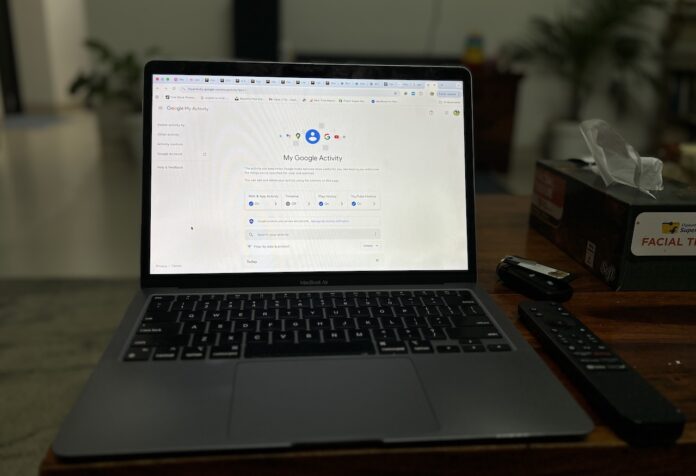
Google is where most of us start our day online—searching for answers, navigating places, watching videos, or quickly checking something on our phones. Over time, that also makes Google one of the biggest collectors of our online activity.
To its credit, Google doesn’t completely hide this data. Instead, it offers a dedicated dashboard called My Activity, where you can see what Google tracks about you, delete past activity, and control what gets saved going forward.
If you’ve never checked it—or checked once and moved on—here’s a clear guide on how to access Google’s My Activity feature and actually use it.
Quick Answer: You can access Google’s My Activity feature by visiting myactivity.google.com in a web browser or by opening the Google app on Android and navigating to Manage your Google Account → Data & privacy → My Activity. From there, you can view, delete, or control activity related to Google Search, YouTube, location history, and app usage.
Table of Contents
What Is Google My Activity?
Google My Activity is a central timeline of your interactions across Google services while you’re signed in to your account. This includes:
- Searches you make on Google
- Websites you visit while logged in
- Videos you watch or search for on YouTube
- Location data from Google Maps (if enabled)
- Activity across Android devices and Google apps
Instead of digging through individual apps and scattered settings, My Activity brings everything together in one place.
How to Access Google My Activity from the Google App (Android)
The easiest way to access My Activity on an Android phone is through the Google app, which comes preinstalled on most devices. You can follow the steps below to do the same.
- Open the Google app on your phone
- Tap your profile icon in the top-right corner
- Select Manage your Google Account
- Switch to the Data & privacy tab
- Scroll down to History settings
- Tap My Activity
You’ll now see a timeline showing your activity across Google services and devices.
How to Access Google My Activity from a Web Browser
You can also access My Activity from any web browser—on a desktop, Chromebook, or smartphone. You can follow the steps below to do the same.
- Go to myactivity.google.com
- Sign in with your Google account
Your activity timeline will appear automatically.
This method is often easier if you want a bigger screen or more detailed filtering options.
How to Use Google’s My Activity Dashboard
Once you’re inside My Activity, you’ll see your activity grouped by date and service. Each entry shows what Google recorded, along with the time and the product involved.
Filter activity
- Tap Filter by date & product
- Choose a specific Google service like Search, YouTube, or Maps
- Narrow results by date range if needed
This is especially useful if you’re trying to find—or delete—something specific.
How to Delete Activity from Google My Activity
Google lets you remove activity in several ways, depending on how much you want to clean up.
Delete individual items
- Tap the three-dot menu next to an activity entry
- Select Delete
Or, Delete activity by date range
- Tap Delete
- Choose Custom range
- Select the dates and confirm
Delete all activity
- Tap Delete
- Select All time
Keep in mind that once an activity is deleted, it cannot be recovered.
How to Set Up Automatic Activity Deletion
If you don’t want to manually delete activity every now and then, Google also offers an auto-delete option.
You can choose to automatically delete activity older than:
- 3 months
- 18 months
- 36 months
This is one of the most practical privacy settings to enable, especially if you still want Google’s personalised features to work as expected.
Managing the Three Main Activity Categories
Google splits your activity into three key sections, each with its own controls.
Web & App Activity
This includes Google searches, browsing activity, and app usage. Turning this off stops future tracking, while deleting it removes previously saved data.
Location History
This stores location data used by Google Maps Timeline. You can turn it off if you don’t want Google saving where you go.
YouTube History
This tracks videos you watch and searches you make on YouTube. You can pause it or delete past history without affecting your subscriptions.
All three options are available under Data & privacy → History settings.
Should You Turn Everything Off?
Not necessarily.
Disabling all activity tracking can reduce personalisation across Google services. Search results may feel less relevant, YouTube recommendations may worsen, and Maps may lose useful context.
For most users, a better approach is to:
- Keep tracking enabled
- Enable auto-delete
- Review activity occasionally
This gives you control without breaking features you might actually rely on.
Final Thoughts
Google’s My Activity feature isn’t just a privacy tool—it’s a transparency tool. It shows you exactly what Google saves about your online behaviour and gives you the ability to manage it on your terms.
You don’t need to turn everything off. But knowing where your data lives—and how to clean it up—puts you back in control of your Google account.
And that’s always worth a few minutes of your time.
