

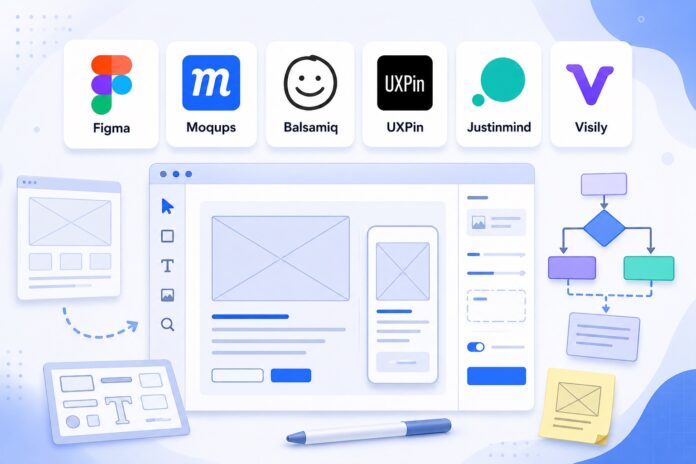
I’ll be upfront: I didn’t walk into this research project as a wireframing expert. I came in as someone who’s spent years working alongside product teams, sitting in on design reviews, and watching the gap between “what we sketched” and “what got built” cause real problems on real projects.
That experience gave me a specific lens for testing these tools — not “which one has the most features,” but “which one actually helps teams move faster and communicate better.” I tested over a dozen wireframing apps, went through the full process of signing up, building a basic mobile app wireframe (a login page and a dashboard), pushing the collaboration and export features, and paying attention to where each tool got in its own way.
Here’s what I found.
What Is a Wireframe, and Why Does the Tool Matter?
A wireframe is a low-detail blueprint of a digital product — focused on structure, layout, and user flow rather than colors, fonts, or finished visuals. Think of it as the architectural sketch before anyone starts laying bricks. The point is to get an idea into a form that other people can respond to, before too much time or money has been spent on execution.
The tool matters because a bad one slows the whole process down. Too complex and people skip wireframing entirely, jumping straight into high-fidelity design before the concept is solid. Too limited and you can’t properly communicate what you mean. The best wireframe tools sit in a sweet spot — fast enough to be useful in the early stages, capable enough to carry the idea all the way through to a developer handoff.
What Makes a Good Wireframe Tool?
Before getting to the list, here’s the framework I used to evaluate each tool:
Collaboration options. Whether it’s real-time co-editing, comments, or a clean sharing link for stakeholders — if a wireframe only lives on one person’s screen, it’s not doing its full job.
A UI component library. Pre-built buttons, input fields, navigation bars, and other interface elements mean you’re sketching concepts, not rebuilding basic components from scratch every session.
Export and handoff options. At some point, a developer takes your wireframe and builds it. How that transition happens — PDF, HTML, direct code integration — affects how much friction exists between design and implementation.
Cross-platform compatibility. Your team uses different devices and operating systems. A tool that only works on Mac or only in a browser creates problems before you even start.
Speed of use. Wireframes should be fast to make and easy to revise. I eliminated tools that required too long a setup before producing anything useful.
I also paid attention to something harder to quantify: how it felt to actually work in each tool under pressure. Some apps look great in a demo and frustrate you the moment you try to do something slightly outside their expected workflow. Others feel limited until you understand how they’re designed to be used, and then they click into place. That distinction matters more than any feature list.
The 6 Best Wireframe Tools
| Tool | Best For | Pricing |
|---|---|---|
| Figma | Real-time team collaboration | Free; from $16/user/month |
| Moqups | Beginners | Free; from $9/month |
| Balsamiq | Non-designers | From $12/month |
| UXPin | Code-based design handoff | Free; from $6/editor/month |
| Justinmind | Interactive wireframes | Free; from $9/editor/month |
| Visily | AI-assisted wireframing | Free; from $11/editor/month |
1. Figma (Web, macOS, Windows, iOS, Android)
Figma pros:
- Generous free plan that covers most individual use cases
- FigJam whiteboard for pre-wireframe brainstorming
- Real-time collaboration across teams of any size
- Enormous community plugin library for icons, UI kits, and more
Figma cons:
- Advanced features like auto-layout and constraints have a real learning curve
- Complex files can slow down in the browser
- No meaningful offline mode
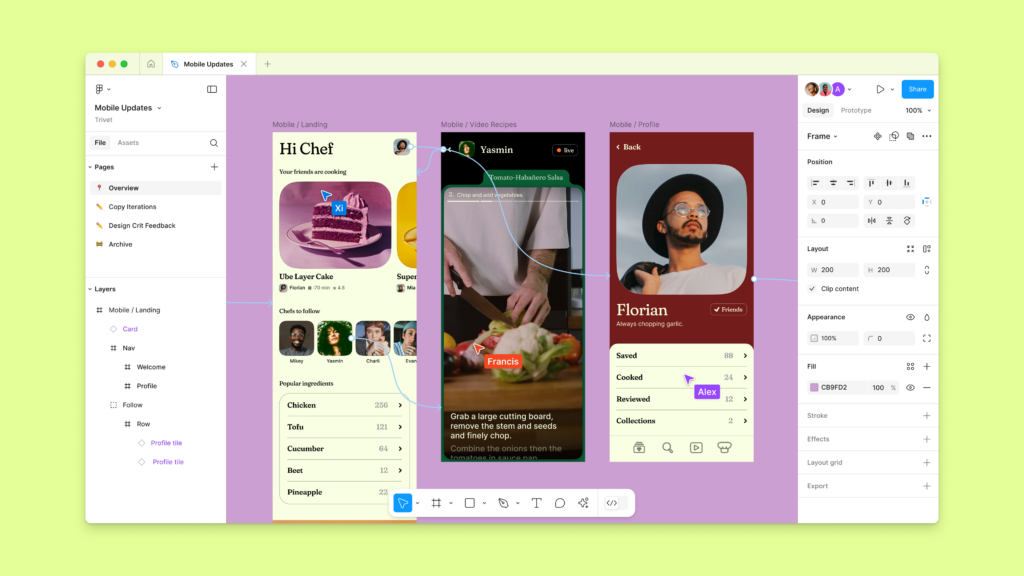
Figma has become the default tool for digital product design, and when you spend time in it, it’s not hard to understand why. It started as a web-based alternative to desktop tools like Sketch, and the fact that it ran in a browser — meaning anyone on any device could open a link and start collaborating — was enough to shift the entire industry. Today it’s less a challenger and more the established standard.
What I kept coming back to during testing was how little friction exists between having an idea and getting it onto a canvas. You pick a frame size — Figma includes presets for every common device, from desktop monitors to specific iPhone and Android dimensions — and start dragging elements in. If you want something the tool doesn’t natively provide, the plugin library almost certainly has it: icon sets, stock photo integrations, UI component kits, accessibility checkers, diagramming shapes. The community has built tools for nearly every gap.
Before you even open a design file, FigJam — Figma’s built-in whiteboard — is worth using. For the projects I tested it on, starting in FigJam to map out the flow and get alignment on the concept before moving into Figma itself saved genuine back-and-forth later. It’s a step that used to require a separate tool.
The collaboration features are where Figma earns its reputation most clearly. Multiple people can edit the same file at the same time. Comments appear as sticky notes directly on the canvas, can be replied to, resolved, or tagged to specific team members. Paid plans add audio chat within the canvas — which sounds like a small thing until you’re on a deadline and need to talk through a decision without switching to a separate call.
The design library system is the feature I’d highlight for any team managing more than one project. Build a shared set of master components — button styles, form elements, navigation patterns — and any designer on the team can pull from the same source of truth. Update the master component and every instance across all your files updates automatically. For teams that have spent time chasing down inconsistencies across multiple files, this alone is worth the switch.
The learning curve is real, though. Basic wireframing is accessible quickly. But the more powerful features — auto-layout, responsive constraints, component variants — take time to understand properly. For teams willing to invest in that learning, the return is significant. For someone who needs a wireframe by tomorrow morning and has never used Figma, it might be more tool than the situation requires.
Figma pricing: Free for unlimited drafts and up to 3 projects; from $16/user/month for the Professional plan with unlimited projects, team libraries, and more.
2. Moqups (Web)
Moqups pros:
- Beginner-friendly interface with minimal setup required
- Templates for wireframes, flowcharts, and business strategy sessions
- Solid team collaboration options for a tool at this price point
- Integrates with Slack, Jira, and Dropbox
Moqups cons:
- Requires an internet connection — no offline mode
- No freeform pen or drawing tool
- Export limited to PNG, PDF, and HTML
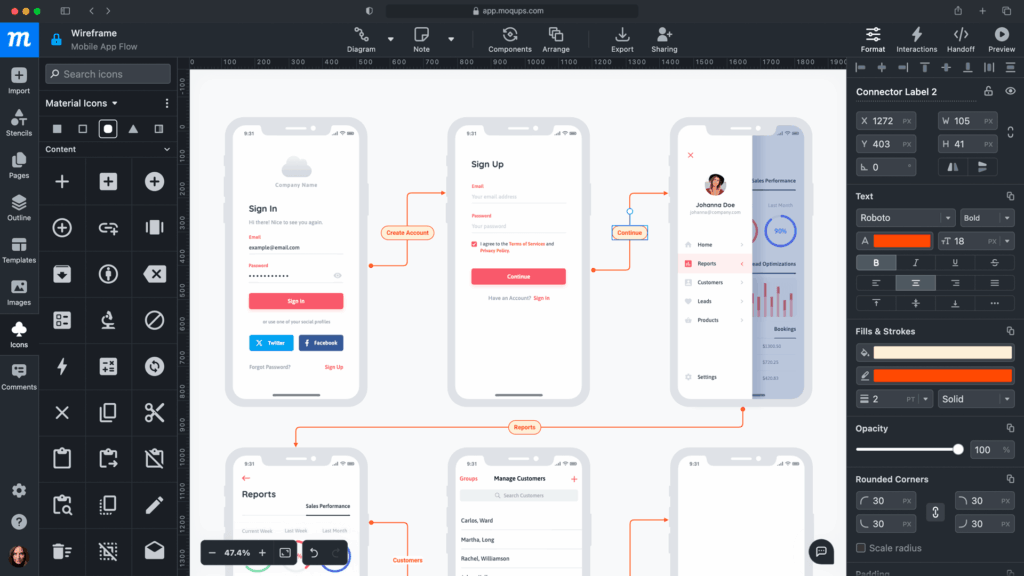
If you’ve never used a design tool and need to produce a wireframe quickly, Moqups is where I’d point you. The onboarding is fast — sign up, choose a template, and you’re in the canvas within two minutes. That speed matters more than it sounds. Tools that require extensive setup before you can do anything useful are the ones that get abandoned.
The template library is genuinely helpful for getting started. I chose the mobile app login template for my testing session and had a working wireframe skeleton within about ten minutes. Non-designers will also find the flowchart and business diagram templates useful — it’s a flexible tool for different types of visual thinking, not just UI wireframing.
The Stencils feature is what makes Moqups work for beginners. Rather than building interface elements from scratch, you pull pre-designed buttons, input fields, maps, calendars, and navigation patterns from the library and drop them onto the canvas. For someone who just needs to show a stakeholder what a screen should roughly look like, this is plenty.
The limitations become noticeable as your needs grow. There’s no proper freeform drawing tool, which limits what you can create outside the pre-built element library. The collaboration features — a comment system and some overlay shapes — are functional but basic next to Figma. The toggle between the outline (layer) view and the design view requires more clicks than it should, which adds friction when you’re working quickly.
Export is limited to PNG, PDF, and HTML for paid users — no SVG, which matters if you need to hand off vector assets. For most beginner use cases, this isn’t a dealbreaker. But it’s worth knowing before you commit.
Moqups is the right tool for solo users, product managers, founders, and business analysts who need to communicate ideas visually without investing time in learning a full design tool. For teams that need more advanced collaboration or export options, it’s a starting point, not a final destination.
Moqups pricing: Free for up to 2 projects with 400 objects; from $9/month for solo users with unlimited projects; from $15/month for teams with real-time collaboration.
3. Balsamiq (Web)
Balsamiq pros:
- Sketch-style aesthetic keeps early feedback focused on concepts, not visuals
- Extremely simple interface — almost no learning curve
- Can use without creating an account for basic work
- Available as both cloud and desktop app
Balsamiq cons:
- No custom design elements — you work with what the library provides
- Prototyping is clunky — separate files required for each screen
- Export only to PNG and PDF
Balsamiq has been around since 2008, and it’s survived that long because it got something fundamentally right: wireframes shouldn’t look finished.
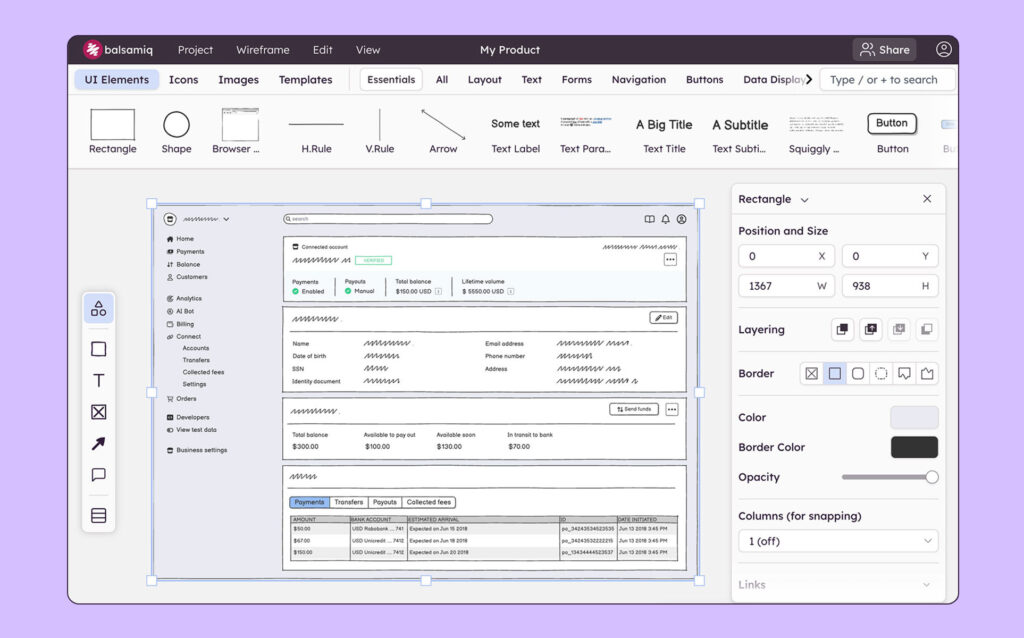
The sketch-style, hand-drawn aesthetic Balsamiq uses is a deliberate product decision, not a design limitation. When a wireframe looks rough and obviously unfinished, the people reviewing it give feedback on the right things — does this layout make sense? Does this flow work? Does this solve the problem we’re trying to solve? When a wireframe looks polished, reviewers start debating button colors and font sizes. Balsamiq eliminates that distraction entirely.
Testing it felt immediately different from every other tool on this list. There are no layers to manage, no complex settings to navigate. The canvas is in the center, the element library is along the top, the screen list is on the left. Drag elements onto the canvas, resize them, rearrange them. For someone who’s never touched a design tool in their life, this is the most accessible starting point available.
The element library covers the most common interface patterns well — navigation bars, buttons, input fields, data tables, form elements, sliders, and more. For straightforward wireframes of websites or mobile apps, you’ll rarely need something that isn’t there.
The limitations are real, though. There’s no custom design capability — you work with what the library provides, full stop. The prototyping is functional but awkward: each screen is a separate file, which means comparing two versions of the same design requires more clicking than it should. For anything beyond initial concept communication, you’ll outgrow Balsamiq quickly.
For stakeholder presentations, early-concept sketches, and getting alignment before anyone’s invested too much in execution — Balsamiq is excellent. Just don’t expect it to take you all the way to a polished prototype.
Balsamiq pricing: 30-day free trial; from $12/month for the Business plan with up to 2 projects, unlimited users and wireframes.
4. UXPin (Web, macOS, Windows)
UXPin pros:
- Merge feature enables design with real code components
- Live preview with documentation, annotations, and stakeholder approvals built in
- Available on web, macOS, and Windows
- Strong for both wireframing and high-fidelity prototype work
UXPin cons:
- Interface has a steeper learning curve than most tools on this list
- Built-in UI component library is smaller than Figma’s
- Full value requires integration with a code-based component system
There’s a problem in digital product development that most wireframing tools quietly accept as unavoidable: the gap between what gets designed and what can actually be built. A designer creates something in a tool. A developer looks at the handoff and explains why three of those interactions aren’t possible in the component system they’re using. The process resets. Time gets lost.
UXPin is the tool that treats this as a solvable problem — and solves it in a way nothing else on this list does.
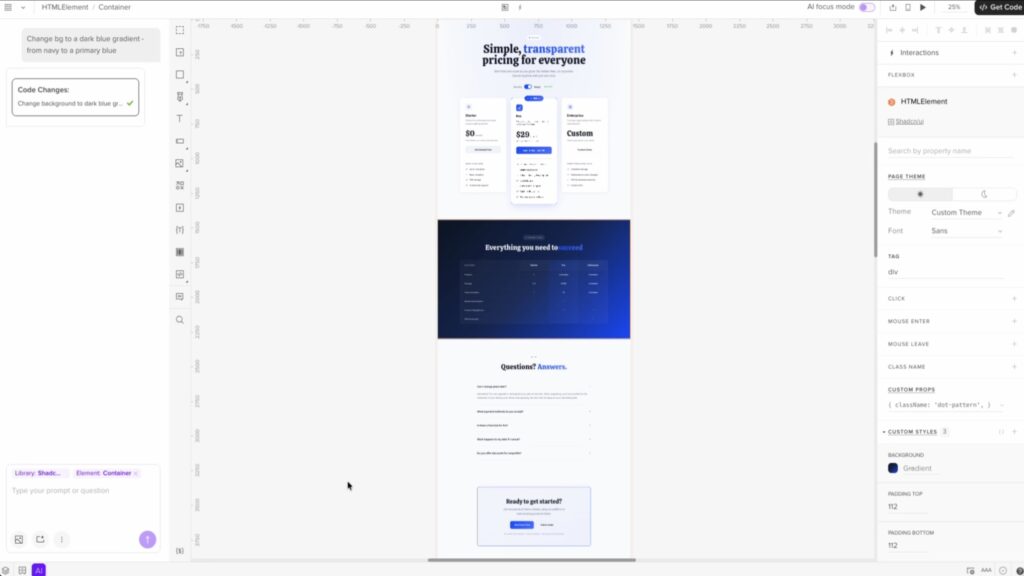
The standout feature is Merge. It lets you import and synchronize actual code components — from React, Bootstrap, Carbon, Storybook, npm, and other systems — directly into your design canvas. Instead of designing with visual approximations of your real interface components, you’re designing with the actual components your development team uses. The button in your wireframe is literally the same button that gets shipped. There’s no translation step between design and code because the design is already written in code.
The practical impact is significant. Designers can’t create layouts that are impossible in the component system — because the constraints are baked in. Developers receive handoffs that map directly to their existing codebase — because they do. The feedback loop that typically consumes time between design and implementation gets dramatically shorter.
The preview and handoff system reinforces this. You can present work in a live preview mode, add technical specifications and written annotations, manage who has access to what level of detail, and collect formal approvals — all within the same tool. For teams that struggle with keeping feedback consolidated and decisions documented, having everything in one place is genuinely useful.
The interface isn’t the most intuitive I tested, and the built-in UI kit is smaller than Figma’s. The full value of UXPin also only becomes clear when your team is using a component-based development system that can be synced. For those teams, though, the investment pays off considerably.
UXPin pricing: Free for up to 2 prototypes; from $6/editor/month for the Essentials plan with 20 prototypes, interactions, and stakeholder approvals.
5. Justinmind (macOS, Windows)
Justinmind pros:
- Interactive UI elements that function like real interface components
- Approachable interface — easier to learn than UXPin
- Strong for both low-fidelity wireframes and polished high-fidelity prototypes
- Free plan is genuinely capable for basic wireframing work
Justinmind cons:
- Check-in/check-out collaboration model blocks simultaneous editing
- Performance degrades on large, complex files
- No browser-based version — desktop app only
There’s a moment in almost every user testing session that the facilitator quietly dreads. A participant tries to interact with something in the prototype. Nothing happens. The facilitator leans forward: “Just imagine that takes you to the next screen.” The participant nods, but the moment is broken. The test data is now compromised by the participant’s awareness that they’re looking at a simulation.
Justinmind exists to prevent that moment.
The interface is straightforward — canvas in the center, element panels on the sides, a screen list for navigation. The learning curve is gentler than UXPin, and I was producing usable wireframes within the first session. But what separates Justinmind is its approach to interactive elements.
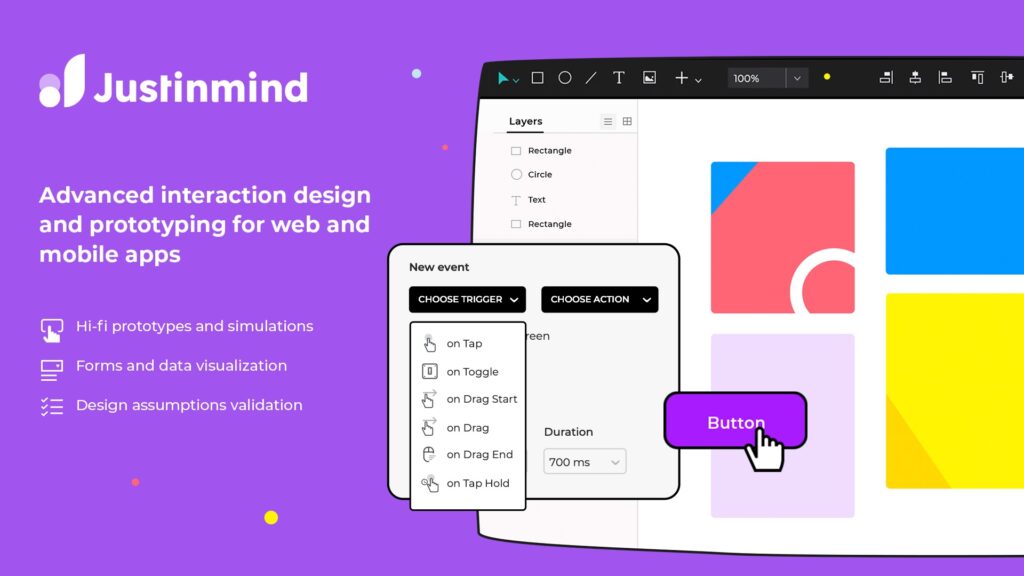
Most wireframing and prototyping tools simulate interactions — you set up a click that navigates from one screen to another, and that’s roughly where it ends. Justinmind includes UI elements that actually function. Text inputs that you can type real text into during a test session. Dropdowns that open and close with a click. Radio buttons that respond correctly when selected. Checkboxes that check and uncheck. Form validation that triggers real error messages when a field is left empty.
When someone is testing a prototype and these elements behave like real interface components, the quality of the session changes. Participants engage more naturally. They discover usability problems that would have been invisible in a click-through prototype. The testing data is more useful because the experience was more realistic. For teams whose process includes regular usability testing — and that should be more teams than it currently is — this is a meaningful advantage.
The collaboration model is the main limitation. Unlike Figma’s simultaneous editing, Justinmind uses a check-in/check-out system where only one person can edit a screen at a time. For small teams or workflows where people work sequentially, this is manageable. For larger teams working in parallel on the same files, it creates bottlenecks. The desktop-only requirement also limits access for collaborators who don’t have it installed.
Justinmind pricing: Free for wireframing, UI design, and unlimited screens; from $9/editor/month for advanced interaction design and mobile device testing.
6. Visily (Web)
Visily pros:
- Text-to-wireframe AI generates usable multi-screen designs quickly
- Screenshot import converts any existing UI into an editable wireframe
- Clean, minimal interface with a low learning curve
- Direct Figma export makes moving to detailed design seamless
Visily cons:
- Manual customization options are intentionally limited
- AI outputs favor standard patterns over highly custom layouts
- Designed as an ideation tool, not a finishing tool
I went into testing Visily with reasonable skepticism. AI design tools have earned that skepticism — the gap between the promise and the delivery is usually large. You type a prompt, get something that vaguely resembles a layout, and then spend more time fixing it than you would have spent building from scratch.
Visily is genuinely different, and I want to be specific about why.
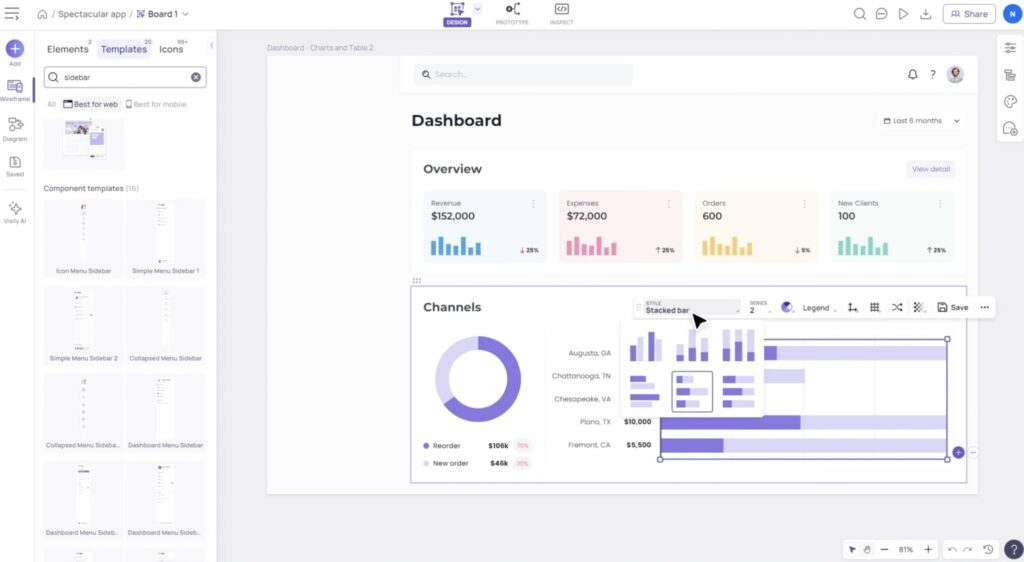
I submitted a prompt describing a reading app: a login screen, a library dashboard, and a reading wishlist. Within about 45 seconds, Visily generated five screens. The layouts had coherent visual hierarchy. The spacing was sensible. The navigation prototyping between screens was already connected — without me setting it up. It wasn’t a rough sketch I’d need to rebuild. It was a usable starting point I could evaluate and iterate from.
The screenshot import feature impressed me equally. Drop in a screenshot of any existing website or app, and Visily converts it into an editable wireframe. For redesign projects, competitive analysis, or trying to replicate a reference UI for discussion purposes, this eliminates a meaningful amount of manual recreation work.
The manual customization options are intentionally narrow — Visily is an ideation tool, not a finishing tool. The moment you need fine-grained control over layout and component behavior, you’ve outgrown it. The good news is that Figma export is built in and works cleanly, so the transition from initial concept to detailed design is as smooth as the workflow can make it.
The clearest use case for Visily is breaking through the blank-canvas problem. If your team regularly spends the first hour of a design session debating structure before anything is even on screen, Visily turns that hour into ten minutes. You’re evaluating concrete options instead of negotiating abstract ones.
Visily pricing: Free for 100 AI credits and 2 editable boards; from $11/editor/month for 3,000 AI credits, unlimited boards, and Figma export.
Which Wireframe Tool Should You Use?
The honest answer is that it depends less on skill level than on what you’re trying to accomplish and who you’re working with.
If you’re on a product team that ships digital products regularly, Figma is probably already the right answer — and if it’s not what you’re using, there’s a good chance it should be. The collaboration, the ecosystem, the handoff options. It covers more of the workflow than any other tool on this list.
If you’re not a designer and need to sketch an idea to get feedback, Balsamiq removes the most friction. Its deliberately rough aesthetic means stakeholders engage with the concept rather than the execution, which is exactly what early-stage wireframes need.
If you’re newer to wireframing and want something that gets you productive quickly, Moqups is the gentlest on-ramp. Templates, a solid stencil library, and an interface that doesn’t require a design background.
If your team’s biggest pain point is the gap between design and development, UXPin addresses that problem more directly than anything else available. The code-component integration changes what handoff looks like.
If your process includes user testing with real participants, Justinmind’s interactive elements produce more useful sessions. The difference between a click-through prototype and one where form inputs actually work is bigger than it sounds in practice.
If you find yourself staring at a blank canvas not knowing where to start, Visily gets you to something concrete in minutes. Use it for ideation, export to Figma, and carry the idea forward from there.
And one more thing worth saying: there’s no rule that says you pick one and commit to it forever. Plenty of teams use Visily for initial concepts, Figma for detailed design and collaboration, and Justinmind when they’re preparing for usability testing. Treating these as specialists rather than generalists often gets better results than trying to force one tool to do everything.
Glossary of Key Terms
Wireframe: A basic visual blueprint of a digital product, focused on layout and structure rather than colors or finished visuals. Uses placeholder symbols — gray squares for images, lines for text — to keep discussion focused on high-level concepts.
Mockup: A step beyond a wireframe — fully designed with color, typography, and imagery, but typically not yet interactive.
Prototype: An interactive wireframe or mockup that users can click through and interact with. Used for testing before development begins.
Low-fidelity: Rough, simplified designs. Wireframes are low-fidelity by nature — the roughness is intentional.
High-fidelity: Polished designs that closely resemble the finished product. High-fidelity prototypes are often indistinguishable from the real thing in a testing session.
UI components: Pre-built interface elements — buttons, checkboxes, dropdowns, progress bars, navigation menus — that speed up the wireframing process by eliminating the need to build common patterns from scratch.
Artboard: A separate canvas within the same design file. Most design tools let you create multiple artboards — one per screen, for example — so you can see the full flow without switching between files.
Design handoff: The process of passing a completed design to a development team for implementation. How cleanly this happens significantly affects how much time gets lost between design approval and launch.
Component library: A shared collection of standardized UI elements that ensures consistency across a product. When the master component is updated, every instance updates automatically — across all files.
Vector graphic: An image made up of mathematical points, lines, and curves that can scale infinitely without losing quality. Most UI elements are vector-based for this reason.
Raster graphic: An image made up of pixels. Scales poorly — enlarge it beyond its original resolution and it becomes blurry. Photographs are the most common form of raster image.
FAQs: Best Wireframe Tools in 2026
Q: What is the best wireframe tool overall in 2026?
Figma is the best all-around wireframe tool for most teams. It combines real-time collaboration, a large plugin ecosystem, and developer handoff features in a single platform — with a free plan that covers most individual use cases.
Q: Which wireframe tool is best for someone with no design experience?
Balsamiq is the most accessible for non-designers. Its sketch-style aesthetic naturally keeps early feedback focused on concepts rather than visual details, and the interface requires almost no learning to produce something useful.
Q: Are there good free wireframe tools?
Yes — Figma’s free plan covers unlimited drafts and up to 3 projects. Moqups, UXPin, Justinmind, and Visily all offer free tiers with enough functionality to do meaningful wireframing work.
Q: Which wireframe tool is best for interactive prototyping?
Justinmind leads here. Its built-in UI elements — functional text inputs, dropdowns, radio buttons, form validation — create more realistic and useful testing sessions than the click-through prototyping most tools offer.
Q: Can AI actually help with wireframing?
Yes, meaningfully. Visily’s text-to-wireframe feature generates usable multi-screen designs from a text prompt in under a minute. The outputs work best as starting points that get refined in a more full-featured tool like Figma — but as a way to get unstuck and move quickly through initial ideation, it genuinely delivers.
Q: What wireframe tool is best for developer handoff?
UXPin. Its Merge feature lets designers work with actual code components from the development team’s system, making handoffs more accurate and significantly reducing the back-and-forth that typically happens between design approval and implementation.
Q: Do I need to choose just one wireframe tool?
No — and many teams don’t. A common workflow is Visily for initial ideation, Figma for detailed design and collaboration, and Justinmind when preparing interactive prototypes for user testing. Different tools for different stages is a legitimate and often more effective strategy than forcing one tool to do everything.
Conclusion
The best wireframe tool is the one that removes friction between your idea and other people’s understanding of it. Whether that’s a $12 Balsamiq account for a product manager who hates design tools, or a full Figma Professional plan for a twelve-person team — the goal is the same.
Get the concept out of your head. Get it in front of people who can respond to it. Iterate before the stakes get higher.
Everything else is just features.
