

If you’ve ever checked your phone after a meeting and seen a missed call, you already know why voicemail still matters. Not every call comes at the right time, and not everyone follows up with a text.
Voicemail fills that gap. It lets people leave you a message when you can’t answer, so you don’t miss something important—or personal. The good news is that setting up voicemail on an iPhone doesn’t take long, and you only have to do it once.
Below, we’ll go through the different voicemail options available on iPhone and show you exactly how to set it up.
Types of Voicemail on iPhone
Apple offers more than one way to handle voicemail, depending on your iOS version and carrier support.
Visual Voicemail
With Visual Voicemail, your messages appear in a list instead of arriving in the order they were received. In many cases, you’ll also see a text transcription of the message, which makes it easier to scan voicemails without listening to each one.
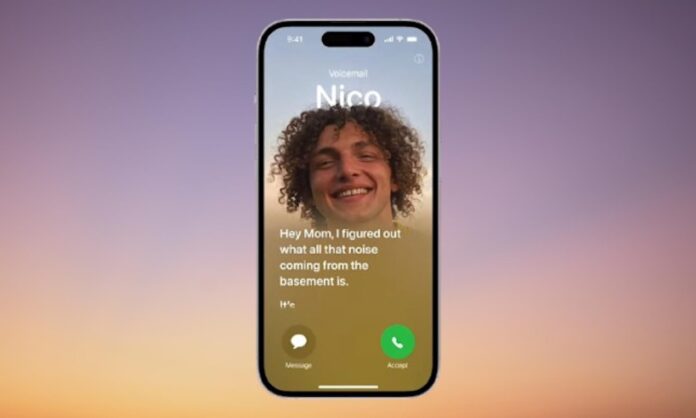
Live Voicemail
Live Voicemail is available on iPhones running iOS 17 or later. When someone leaves you a voicemail, you can see the message being transcribed on your screen in real time. If it turns out to be urgent, you can still pick up the call while it’s happening.
How to Set Up Voicemail on iPhone
Before people can leave you messages, you’ll need to set up voicemail on your device. Follow these simple steps:
- Open the Phone app on your iPhone. This is the green icon used to make calls, view recent call history, and manage contacts.
- Tap the Voicemail icon located in the bottom-right corner of the screen. If tapping this option starts a call instead, it usually means your carrier does not support voicemail on your current plan.
- If voicemail hasn’t been set up yet, you’ll see a Set Up Now option. Tap it to begin. Note: If you don’t see this option, voicemail is already enabled on your iPhone.
- Create a voicemail password when prompted. Choose a password that’s easy to remember, enter it again to confirm, and tap Done.
- Choose your voicemail greeting. You’ll be given two options:
- Default – Uses Apple’s pre-recorded greeting
- Custom—Lets you record your own greeting
- Select Custom if you want to personalise your message.
- Tap Record to start recording your greeting. When finished, tap Stop.
- You can preview it by tapping Play. If you’re not satisfied, tap Cancel and record again. Once you’re happy with it, tap Done to save your greeting.
How to enable storing Voicemail in iCloud
Your voicemail messages can also be backed up to iCloud, which helps keep them safe and accessible if you switch devices or need to restore your iPhone.
When iCloud Backup is turned on, your voicemails are automatically included in the backup along with other important data. This means you won’t lose your voicemail messages if you reset your phone or move to a new iPhone.
How to store voicemail in iCloud
- Open Settings on your iPhone.
- Tap your Apple ID name at the top.
- Select iCloud.
- Tap iCloud Backup.
- Make sure iCloud Backup is turned on.
Once enabled, your voicemails will be saved to iCloud during regular backups, as long as your iPhone is connected to Wi-Fi and charging.
Note: Voicemail storage and availability can still depend on your carrier. If a voicemail isn’t appearing after a restore, it may not have been fully synced or supported by the carrier.
Final Thoughts
Voicemail might feel like an old feature, but it’s still one of the easiest ways to stay reachable without being glued to your phone. Once it’s set up, people can leave you messages whenever you’re busy, and you can check them when it suits you.
It only takes a few minutes to set up, and once it’s done, you won’t have to think about it again.
