

Apps on your iPhone or iPad can disappear from view in several different ways — and each has its own fix. Whether you accidentally hidden an app using iOS 18’s Face ID lock feature, removed it from your Home Screen, hid it from your App Store purchase history, or restricted it via Screen Time, this guide covers every method to get it back.
Table of Contents
Quick Answer
The fastest way to unhide a hidden app on iPhone or iPad depends on how it was hidden:
- Hidden via iOS 18 Face ID lock → Go to App Library → tap the Hidden folder → authenticate → long-press app → tap “Don’t Require Face ID”
- Removed from Home Screen → Open App Library → long-press the app → tap “Add to Home Screen”
- Hidden in App Store purchase history → Open App Store → tap your profile → tap your name → tap Hidden Purchases → tap Unhide
- Restricted via Screen Time → Go to Settings → Screen Time → Content & Privacy Restrictions → Allowed Apps → re-enable
Summary Table
| Scenario | Where to Look | Fix |
|---|---|---|
| App hidden with Face ID (iOS 18) | App Library → Hidden folder | Long-press → Don’t Require Face ID |
| App removed from Home Screen | App Library | Long-press → Add to Home Screen |
| App hidden in purchase history | App Store → Profile → Hidden Purchases | Tap Unhide, then re-download |
| Entire Home Screen page hidden | Home Screen edit mode → dots | Re-check the page |
| App blocked by Screen Time | Settings → Screen Time | Enable in Allowed Apps |
| Can’t find app anywhere | Spotlight Search | Swipe down, type app name |
| All else fails | Settings → General → Reset | Reset Home Screen Layout |
This guide is accurate for iOS 18 / iPadOS 18 and later. Steps may differ slightly on older iOS versions.
Method 1: Unhide Apps from the Hidden Folder (iOS 18)
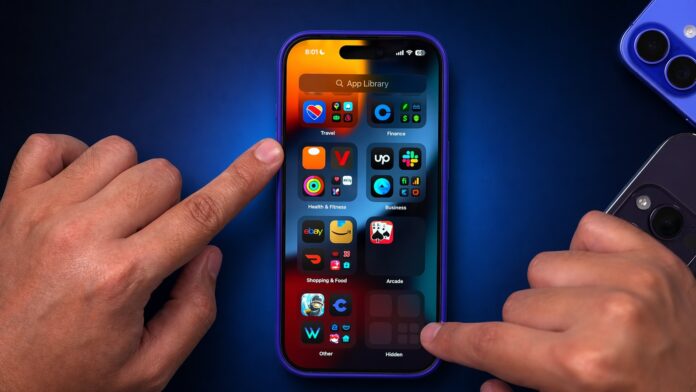
Starting with iOS 18, Apple introduced a native “hide app” feature that moves apps to a locked Hidden folder in the App Library, protected by Face ID, Touch ID, or a passcode.
How to access and unhide:
- On your Home Screen, swipe left past all Home Screen pages to open the App Library
- Scroll to the bottom of App Library and tap the Hidden folder
- Authenticate using Face ID, Touch ID, or your passcode
- Find the app you want to unhide
- Long-press (touch and hold) the app icon
- Tap “Don’t Require Face ID” (or “Don’t Require Touch ID”)
- Authenticate again when prompted
- The app will now appear near the top of your App Library
Note: Unhiding an app moves it out of the Hidden folder, but it won’t automatically reappear on your Home Screen. You’ll need to manually add it back (see Method 2 below).
Method 2: Add a Hidden App Back to Your Home Screen
If your app is in the App Library but not visible on any Home Screen page:
- Swipe left past all Home Screen pages to open App Library
- Tap the search bar at the top and type the app’s name
- Once you find it, long-press (touch and hold) the app icon
- Tap “Add to Home Screen”
The app’s icon will now appear on your Home Screen.
Method 3: Unhide Apps from App Store Purchase History
You may have hidden an app from your App Store purchase list. This doesn’t delete the app, but it removes it from your visible purchase history and prevents family members from re-downloading it.
To unhide a purchase:
- Open the App Store
- Tap your profile photo or initials at the top right
- Tap your name or Apple ID (you may be asked to sign in)
- Scroll down and tap Hidden Purchases
- Find the app you want, then tap Unhide
- Tap Account Settings, then tap Done to return to the App Store
- Search for the app and tap the download icon (cloud with arrow) to re-install it
Important: Unhiding from the purchase list does not automatically reinstall the app. You must search for and download it again.
Method 4: Unhide a Hidden Home Screen Page
If you hid an entire Home Screen page, all apps on it became invisible at once.
To restore hidden Home Screen pages:
- Long-press on an empty area of your Home Screen until apps start jiggling
- Tap the row of dots at the bottom of the screen (Home Screen page indicators)
- You’ll see thumbnails of all your Home Screen pages, including hidden ones
- Tap the circle beneath any greyed-out page to re-enable it (a checkmark will appear)
- Tap Done
All apps on that page will now be visible again.
Method 5: Check Your App Library (App Not on Home Screen)
Sometimes apps aren’t technically hidden — they’re just stored in the App Library without a Home Screen shortcut. This happens when you install an app and iOS places it only in the App Library.
- Swipe left past all Home Screen pages to reach App Library
- Use the search bar at the top to type the app name
- Or swipe down anywhere in App Library to see a full alphabetical list
- To add it to your Home Screen, long-press the icon → Add to Home Screen
Method 6: Use Spotlight Search to Find a Hidden App
Spotlight Search can locate most installed apps, even if they’re not on your Home Screen.
- Swipe down from the middle of your Home Screen to open Spotlight Search
- Type the app name
- Tap the app to open it directly
If the app doesn’t appear in search, it may have been excluded from Spotlight results. Go to Settings → Siri & Search → [App Name] and turn on “Show App in Search.”
Method 7: Unhide Apps Blocked by Screen Time
If Screen Time restrictions are active — especially on a child’s device or a shared device — apps may be hidden or blocked entirely.
- Go to Settings → Screen Time
- Tap Content & Privacy Restrictions
- Tap Allowed Apps
- Toggle on any apps that have been turned off
If there’s a Screen Time passcode you don’t know, you’ll need to reset it. Go to Settings → Screen Time → Change Screen Time Passcode → Forgot Passcode and use your Apple ID to reset it.
Method 8: Reset Your Home Screen Layout
If you’re still unable to find a specific app, resetting your Home Screen layout will restore all apps to their default positions. This will not delete any apps or their data, but it will undo all custom folder arrangements.
- Go to Settings → General → Transfer or Reset iPhone
- Tap Reset
- Tap Reset Home Screen Layout
- Confirm by tapping Reset Home Screen
All installed apps will now be visible, organized in their default Apple order.
Frequently Asked Questions
Why did my app disappear from my iPhone?
Apps can disappear for several reasons: you may have removed it from the Home Screen, hidden it using iOS 18’s Face ID hide feature, hidden the App Store purchase, restricted it via Screen Time, or deleted it entirely. Check the App Library first — it shows every installed app.
How do I find the Hidden folder on iPhone?
The Hidden folder appears at the bottom of the App Library (iOS 18 and later). Swipe left past all Home Screen pages to reach App Library, then scroll down to find the Hidden folder. Tap it and authenticate with Face ID or Touch ID.
Can I unhide apps without Face ID?
Yes. If you can’t use Face ID (e.g., you’re wearing a mask), you can use your device passcode instead. When prompted to authenticate on the Hidden folder, tap “Use Passcode” and enter your iPhone passcode.
Will unhiding an app from the App Store bring it back to my Home Screen?
No. Unhiding from the App Store purchase history only makes the app visible in your purchase list again. You still need to download the app and manually add it to your Home Screen.
Does hiding an app delete it?
No. Using iOS 18’s hide feature or removing an app from your Home Screen does not delete the app. The app remains installed. Only deleting via long-press → “Remove App” → “Delete App” uninstalls it.
How do I unhide apps on an iPad?
The steps are identical on iPad. App Library, Screen Time, and App Store purchase management all work the same way on iPadOS 18. The only difference is the larger screen layout — App Library is still accessed by swiping left past all Home Screen pages.
